
FIFA Editing Toolsuite 2.0
I am excited to share details about the new version of FET and FMM, the tools we use to create and apply mods to the game. Over the past few months I have been spending almost all my time on the tool, working on improving many aspects. I’m proud of the work I have done and the tool is now faster, more efficient, and more powerful than ever.
The biggest change is that for the first time ever in the FIFA/EAFC Frostbite era, we can now add bundles and assets. That means that assets like faces, kits and banners, and much more, can be added instead of being replaced.
Getting to the point where this was not only possible but doable in a simple and efficient way was a long journey and took redesigning several aspects of the tool. And without help, adding any of these assets would still be a very complicated process that would take the average user a long time. So, I have implemented several easy menu options for specific types of assets that makes adding them possible with just two clicks.
Performance
Now, when you open the new version of FET, it will look very similar, since the UI is mostly unchanged. Perhaps this makes room for a version 3.0, as completely redoing the UI to be faster and more modern is certainly something I would like to do when certain external factors allow. But it should feel different, mainly from a performance point of view. Everything about the tool should be faster, and often significantly so.
When the cache does not need to be recreated, the whole tool startup process is about 2x as fast. The difference will be bigger if the game is installed on an HDD, as the startup process does far less file I/O than it did before. And when the startup process is done, the memory being consumed by the tool (on FC26) goes from ~2.4 GB on the previous version to ~1.5 GB on 2.0. This is all while having a smaller cache size, 87mb vs. 113mb.
When the cache does need to be recreated, that process is also faster, although the bottleneck is file I/O so the improvement will be smaller.
These improvements come from many things, for one we stopped storing a lot of information we never set or used, which reduced cache size and memory usage significantly. We switched to a different compression algorithm for the cache files that decompresses faster and offers a better compression ratio, and we also optimized several aspects of startup. For instance, the asset loading process when recreating the cache is now as quick as 2 seconds (on my fast PC with an SSD), whereas before it could take up to 15.
But the performance improvements go far beyond startup, and when using the tool you should notice that almost everything feels faster. The data explorer code has been changed to be much faster, with filtering about 5x quicker, and when searching text including accents, almost 50x faster. The initial load of the data explorers are about 3x faster, which is a big part of the improved startup time and also makes opening the Chunk/RES explorer much quicker. They also update better and faster when assets are added or removed.
Assets open, export and import quicker thanks to numerous improvements across the board, with meshes in particular getting a boost. Opening a mesh asset in the mesh previewer will be almost 2x faster, and you’ll also notice some new controls with options to get a specific view and a button to reset the zoom.
For instance, using the “Import Face” menu item is about 10-15% faster and uses less memory, not including the time taken to open the face mesh at the end, so just due to the performance improvements around exporting and importing assets.
New Project and Mod Formats
I managed to get initial basic support for adding textures working a few months ago, but quickly realized that the way the tool worked in many ways just wasn’t suited to properly add assets, which is why so many things got redesigned. Two of the most important redesigns were the editor project (.fifaproject) and the mod file (.fifamod), both rebuilt from scratch. This took a lot of consideration and many choices had to be made, and then I also had to support loading old format projects and mods.
Take the FC25 Realism Mod Graphics Mod project. It is 2.175 GB, with 20k modified EBX, 33k modified chunks, 20k modified res, 13k modified legacy.
Loading the project in FET 1.2.1 takes about 2.5 seconds. In FET 2.0, loading that same exact project, which is in the old format, now takes about 1.3 seconds. Now, if I load that old format project in FET 2.0 and save it (which converts it to the new format), and then load it again, it’s even quicker, taking just 1 second.
With FET 1.2.1, saving the Graphics project takes about 2 seconds. With FET 2.0, it takes less than a second on average.
Now, while those numbers are impressive, they are actually far better in reality, as I massively improved the performance of “resetting” the tool, which is done when creating a new project (Ctrl + N) or loading a project. In FET 1.2.1, it was decently fast to do this when no or very few changes were active, taking about 80 milliseconds on average (0.08 seconds), but it allocated far more memory than it needed to. If you pressed Ctrl + N 25 times, it would take up an additional 250mb of memory. Now in the new version, when no or few changes are active, it takes about 40 milliseconds, and if you press Ctrl + N 25 times it takes up only 6mb of memory. But the speed differences really show when there are a large amount of modifications, like when the Graphics project is loaded. From there, resetting the asset manager, which would happen when pressing Ctrl + N when the Graphics project is loaded, or loading another project when the Graphics project is loaded, would take on average 3 seconds. Now, it takes only about 100 milliseconds (0.1 second). This means that if we were to load the Graphics project, save it, and then reload it (a fairly common thing to do), it would take 10 seconds with the old tool, and only 3 with the new tool, and memory usage will be much lower.
Now, there is a little trade-off with some of the figures here. A decent (but nowhere near all) of the performance boost of project loading is due to the fact that we do not parse all EBX assets when loading. This saves time and memory, but does make loading modified EBX assets ever so slightly slower (as it has to decompress, then read the EBX asset the first time it gets opened/exported. Subsequent times will be just as fast as if we had loaded it when loading the project). The bigger trade-off is that because we do not parse EBX assets when loading projects, we do not set the dependent assets for all modified EBX assets. This only affects what assets are shown in the “References” pane at the bottom of FET. Before, if you opened a file and removed/added a file reference, saved the project, and reloaded, that change would show up in the References pane (i.e., the file would now exist or no longer exist in the pane). In the new version by default, that change would not be reflected, and references in the references pane will always be the default references. For 99% of users, this does not affect them at all, but I can see occasions where this may be unwanted, so there is a setting you can enable at any time to get the old behavior back.
When redesigning these formats we didn’t just have performance in mind, although that was a big driver. We also wanted to minimize file sizes, which does go hand in hand with performance. So with that Graphics project, the new format is almost 6mb smaller, which is only ~0.26%, but that’s better than nothing! We also redesigned the format with simplicity in mind, so when EA modifies an asset in a title update, the new format should be more foolproof and able to reimport our modification quicker and more easily. And of course, we redesigned it with added assets in mind, which in the old format took up far more space than needed compared to modified assets.
With the old FET, exporting the Graphics project as a mod took about 1.5 seconds. With the new version, it takes about 0.6 seconds. Like the project, the new mod format is slightly smaller too, almost 5mb or ~0.28% smaller.
Compression
Now is probably a good time to talk about compression. The tool’s compression code has remained pretty much identical since the first versions back in 2020, with EBX assets compressed using Zstd at a fixed level (pretty high) with no dictionary across all games. Resources and chunks were compressed with Oodle Kraken at the normal compression level with default settings. But the reality is that compression methods differ between games, and we never took that into account. In the new version of FET, each game has their correct compression methods set for each asset type. FIFA 21 and FIFA 22 still use Zstd for EBX assets, but they’re compressed with the dictionary (which results in much smaller files and faster decompression in game). Since FIFA 23, EA has used Oodle Leviathan for EBX assets, so that’s what the new FET will use for those games too. This may offer some performance improvements in game since EA will have had a reason for each choice, so it’s a good idea for FET to use whatever they pick.
Now, there were a few issues with our existing compression code. Assets are compressed with a buffer size, so they get compressed in chunks of that buffer size. In the old code, if any single buffer-size chunk compressed poorly (i.e., the compressed size ended up bigger than the uncompressed size), it would restart the process and store the whole asset uncompressed. It isn’t rare that this would happen. Small chunks don’t compress well, so if an asset was however many buffer sizes long and then had an extra 100 bytes or so, even if all the buffer-size chunks up to this point compressed great, these 100 bytes would compress to like 140, and then we would store the whole asset uncompressed. This is an issue as it means we take up more space on disk and in memory than needed, but it also means we wasted time compressing the asset all the way up until the very end, only to throw it out the window. This issue was amplified by another, which was that for Oodle compression, we weren’t modifying a setting that EA modifies, which improves compression on small files. This increased the chance that the other issue would happen, but also meant a large percent of files (like all texture resources) wouldn’t compress well and get stored uncompressed (again, waste of space and time).
We completely rewrote our compression and decompression code to fix these issues and be faster. And most excitingly, we introduced a new setting: “Compression Level” with 7 options: Fastest, Very Fast, Fast, Good, Very Good, Excellent, Best. Fastest is the default and compresses the file in the least amount of time while of course having the biggest size out of all those options. I think for 99% of users they should leave the setting as is since Fastest is a good default. You may notice I said that on the old version it used Normal compression (equivalent to the “Good” level), but it also used Oodle Kraken. All FIFA/FC games we support use Oodle Leviathan, which has a better compression ratio but takes more time to compress and decompress. Fastest level Leviathan compression on average is slightly faster while providing a slightly better compression ratio than Kraken at the “Good” level we had it at before, so best of both worlds.
The exciting part of this is that there is now a menu item under Tools called “Re-Compress All Assets”, with 7 sub menu items, one for each compression level. Now, in the new project format we store the level each asset was compressed at (and when loading an old format project we set all those values to “Invalid”), so these menu items will only re-compress assets stored at a compression level LOWER than the selected one. So if we selected “Very Good” and it recompresses all assets to that level, then we import some more assets (and our setting is set to “Fastest”), and then we press re-compress all assets to “Good”, it will only re-compress the assets that we just imported whose level is Fastest. It will skip the “Very Good” ones since that’s not a lower level. It does this all as fast as possible, in parallel.
So, with our Graphics project in the new format, without re-compressing anything it was 2.17 GB.
“Fastest” takes 7 seconds and the resulting project size is 2.139 GB
”Very Fast” takes 11 seconds and results in a 2.12 GB project
”Fast” takes 17 seconds and results in a 2.086 GB project
”Good” takes 20 seconds and results in a 2.071 GB project
”Very Good” takes 1 minute and 40 seconds and results in a 2.012 GB project
”Excellent” takes about 3 minutes and results in a 1.966 GB project.
”Best” takes about 20 minutes and results in a 1.951 GB project.
So for most users, “Excellent” is probably a good level to select, but to squeeze every last byte, “Best” can be worth it as a one-off. “Best” results in a ~10% smaller file than without re-compressing at all, which will make a real difference to many things, including loading and saving the project and mod, memory usage with the project loaded in the Editor, and the amount of space the modded game files take up when launching the game.
The Batch Mod Exporter gets some improvements too. First of all I added an option to Re-Compress Assets there, so you can easily re-compress all assets across several projects. The exporting process is also far faster now, mainly due to the improvements to loading and saving projects and resetting the asset manager I went into before, but we also made some specific improvements here to skip a bit of work when saving projects we didn’t need to do. Initializing the batch mod exporter works a bit differently too, we skip a few things we did before that weren’t needed, and we initialize it in the background from the second you open it, so by the time you’ve actually configured the settings it should be ready to go. When mods are exporting there’s a new task window that lets you see the progress, and you can cancel the exporting at any time.
I will talk more about various things in the Editor in a bit, but let’s make our way over to the Mod Manager.
Mod Manager & Applying Mods
We updated the conflicts window to be far faster and only take up system resources when you actually select the tab, which is quite rare. Doing simple things like moving mods up and down is also slightly faster and uses up less memory.
One of the biggest performance improvements is launching the game. This starts with the modding cache, which is generated after each game update and saves a lot of time when launching the game in exchange for using up some disk space. In the old version of FET, the FC25 modding cache was 60 MB, and it took about 12 seconds to generate and ~1.5 seconds to load. In the new version, it’s 25 MB, takes less than two seconds to generate it, and loads in half a second. Wins all around.
But that is far from the only performance improvement around launching the game. Let’s use a good example of launching FC25 with the Realism Mod, using all main mods and a couple addons. In total 17 mods, with an estimated install size of 7.8 GB. With the old version of FET, the full launch process takes about 60 seconds. With the new version, it takes 20. A 3x improvement, not bad! It also uses over 1.5 GB less memory (1.18 GB vs. 2.8 GB). Like all these numbers, they are on my PC which has a very modern processor, fast and plentiful RAM, and a fast SSD, but the performance gains will apply to everyone. Of course, if you have the game installed on an HDD, everything will be much slower, but the improvements may be even larger than on an SSD.
Due to some improvements in the modding process, we also end up with a slightly smaller modded game folder. In the example above it goes from 7.97 GB to 7.92 GB. For mods fully created (i.e., all assets imported) with the new FET, the difference will be even bigger as the new version fixes an issue where all chunks were given a specific flag which meant they got written to places they didn’t need to be, when only some needed this flag.
Launching the game will also be quicker when launching with existing modifications (i.e., in the mod manager if the applied list didn’t change, or in the editor when nothing was changed), as we skip some unnecessary work.
We also added support for adding CAS files when modding in FC25+, whereas previously we had to edit existing ones, so that will decrease the size of the modded game folder significantly as well.
Legacy modifications also work a bit differently. Before we would inflate the size of the manifests due to how the modding process worked, which means the actual game used more memory (and performance in certain areas might have been slightly slower). Now we avoid doing that, which maintains parity with how the original game works and improves the performance of the game.
That was a big theme of this release: mirroring what the original game does in many areas and making sure that mods have the smallest impact on performance possible. In the past, certain things, like the above legacy thing, meant that even modifying a single file could decrease the game’s performance. That should no longer be true.
Anyways, back to the Editor, where there are several sets of improvements I haven’t even mentioned!
Textures
Like mentioned above, a big theme is consistency. We made several changes with that in mind for textures, and in the old version of FET, if you exported a texture as DDS and reimported it, you would expect the modified data to be on par with the original. But this wasn’t true! There were several pointless differences, and even more for certain textures. These issues have all been fixed, which ensures that there are no texture issues in game and perhaps could even improve the game performance compared to how we wrote things before.
Viewing, exporting and importing textures is also generally faster. And we now update the CropInfo property in the EBX for games that have it when needed, fixing some issues when changing the dimensions of certain textures.
Meshes
This was a real area of focus. To start, like textures, there were several differences in how we wrote things compared to the original game, and one of these I am confident would have had a real impact on performance for the worse. All of those issues are fixed. Rigid type meshes were especially inaccurate, which actually did cause real issues (mostly crashes) in game for certain meshes, so that’s fixed as well. We also added better support for certain meshes that exist in games, like layers with no UVs, which can now be imported properly, meaning certain meshes that would get errors no longer do.
There are also real performance improvements, especially when importing meshes, which is faster and uses far less memory.
We also vastly improved our tangent space compression code for reading and writing meshes. Specifically for the kind of tangent space compression that was introduced in FC24. If you ever noticed that exporting something like a face mesh and reimporting it caused it to look quite different in game, that’s because both our tangent space compression reading and writing code were incorrect.
For instance, here is Gabriel’s face in default FC25:

If I simply exported Gabriel’s head mesh in the old version of FET and re-imported it with no changes, here is how it looks in game:
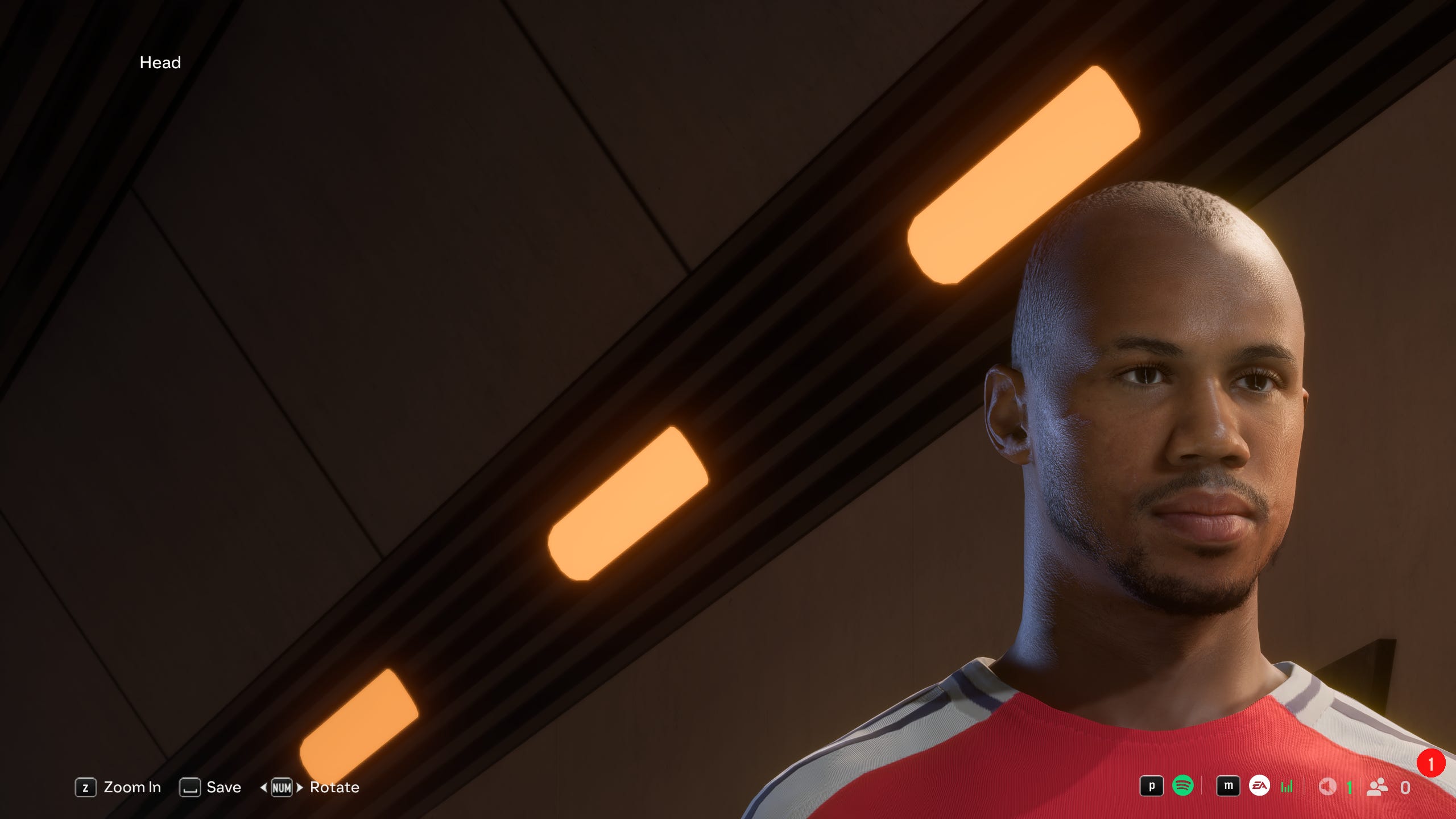
If you compare the two images side by side (https://imgsli.com/NDE5NTY2), you can see a big difference. When reimported, the ears look weird, the light reflects weirdly off the eyes, and every aspect of the face just looks worse.
When imported with the new FET:

Identical to the original mesh (https://imgsli.com/NDE5NTY3).
Previously, importing and exporting the mesh out of Blender made things even worse as Blender exports the normals in a different way, and older versions (which modders commonly use) have worse FBX support and cause other issues.
Now with the new FET version, importing the mesh into the latest version of Blender (4.5.3) and exporting it, and importing back into the new FET, results in something identical to the original, unmodified mesh. In part this is thanks to some detection for Blender-style meshes that corrects some elements.
For this reason, it’s very important that any facemaker, bootmaker, trophymaker, or anyone who is making meshes with Blender upgrades to the latest version immediately: https://www.blender.org/download/. The latest version as of now is 4.5.3 and it’s what was used for this test. Anything older will produce worse results in game, even 4.5.2 which had issues with FBX stuff.
We also made some other corrections to FBX importing and exporting that might improve other meshes across the board.
More excitingly though, we added initial support for composite mesh import. This isn’t something I have tested much, but in my few tests it did seem to work okay in game. I’m sure there will be issues, and this won’t be the highest priority thing for me, but I will look to fix anything that comes up to do with it. This required adding support for various different elements and formats of elements we didn’t support before, which may also help non-composite meshes too.
Audio
Audio editing was also a focus in this release and gets several big improvements. We improved support for exporting and importing audio as SPS and added a setting to change your default Audio Export format. We also added a setting to change the default NewWaveAsset dataset export format between XLSX and CSV. We made several smaller improvements too, like handling -1 values better, better filters when importing, and many smaller UI improvements like middle clicking a column name copies it to the clipboard. We also found more column name hashes, so only a few columns will still display their hash, and I plan to find the rest fairly soon.
The biggest change though is that we better support NewWaveAssets that use StreamPools. Before, every audio added/modified got its own new chunk, but that would cause crashes in game when the amount of total chunks exceeded 64 for assets with StreamPools. Now we add all new/modified sounds to a new second chunk, which should allow for adding as much audio to these assets as needed, without crashes in-game.
DB Editing
The DB editing experience was one of the biggest improvements out of anything in this release.
The biggest change is that we moved the UI over to a Syncfusion Datagrid, the same thing we use for our NewWaveAsset editor, instead of the very basic data table implementation we had before. This brings many improvements, for a start everything is faster and looks nicer, and the Syncfusion Datagrid comes with lots of built-in controls like advanced column filtering and sorting. I think you’ll see that editing DBs in the new version is a far nicer experience.
But maybe more needed than that was making everything faster. FC24’s DB size was about 8MB, so reading and writing times were quite reasonable. Due to the introduction of cranium and the tables related to that, FC25’s DB size was 30mb. This means that loading and saving tables, as well as exporting and importing them, took far longer, often an unreasonable amount of time.
Opening FC25’s DB in the DB editor in the old version of FET took about 10 seconds. Not good, but reasonable enough. Exporting all 250 or so tables though took up to 2 minutes, which is far too much. Importing them was much better, only 8 seconds or so, but then saving the DB took 2-3 minutes.
In the new version of FET, opening the DB takes about 1.5 seconds, exporting all tables takes half a second, importing them all takes 1.5 seconds, and saving the DB takes under 1 second. All while using far less memory. The total consumed by doing all of the above is slightly less than 2 GB, whereas it was over 4 GB before.
A lot of this improvement was due to improvements to our T3DB readers and writers themselves, as well as skipping a lot of the immediate work and directly building the data in a format that can easily be displayed in the UI. These improvements also write the data more accurately. Now saving a DB with no changes will result in the exact same file as the original, which previously wasn’t true for the language databases.
Like I said earlier, due to moving to Syncfusion as well as several performance-specific changes, using the editor also feels far faster. Before, clicking on a big table like “flesh” would take multiple seconds to load, and doing anything (scrolling, selecting, copying) would be very slow and often freeze the tool. Now all tables load pretty much instantly no matter the size, and scrolling feels very responsive.
There’s a ton of new functionality too. Doing Ctrl + G opens up a window to insert a row number, and clicking enter will bring you to that row. There’s also a “Go To Column” button that lets you search the columns in the table and quickly brings you to the one you want. Searching within the tables is also faster and works more intuitively. Individual tables as well as the whole DB can be exported and imported as an Excel workbook, with a new setting to change the default table export format between TXT, TSV and XLSX. Used filters and last selected cells are now cached, so when you go to a different table and back, it will look the same. There are many other improvements and new controls here too that I’ll let you discover on your own!
EBX
EBX, the core of the Frostbite engine, was something I surprisingly didn’t touch much during this whole rework of the tool. Compared to textures, meshes and audio, it’s not something EA changes the format of year to year as much, and luckily FC26 didn’t require any extra work on this front. It got one big new improvement and several smaller performance improvements, but the core reading and writing works the exact same. This is the area of the tool that will be my biggest focus across the next year, and in the coming months I plan to begin reworking it and redesigning several parts of it to be simpler, faster, but importantly, handle several things better. Right now we don’t properly support some types like BoxedRefValues and TypeRefs, which provide limitations for modding certain files. There are also some other issues and just generally, it’s not as accurate as it should be. I plan to fix all those issues, and after that, I would like to really overhaul how EBX are edited inside and outside of the tool.
In terms of outside of the tool, that’s where this release comes in. For a long time we have had the ability to export EBX as XML, JSON, or BIN (just the binary EBX file). The first two allow for real visualization of the asset, but we have never supported importing as either of those formats. In this release that changes, as we have completely overhauled EBX export as XML and added support for importing it as XML too. Now this XML export will look quite different, and at least compared to the JSON, it’s a little less friendly as it’s a much more accurate representation of what an EBX asset actually is. It might take a little time to get used to, but this allows for things that were just not doable in the past just due to how long it would take to edit all the files manually. It also allows for things to be done in much less time. I think this is a great feature that will make a big difference.
In terms of inside the tool, as part of the EBX overhaul, I want to improve our property grid to look nicer, be faster, and also have far more functionality. Better searching, copying, navigating, etc.
Something that goes for both inside and outside the tool are string hashes, which are very common in EBX assets, and currently we don’t have much support for a mapping of resolved hashes so we can display the real strings. This is something I want to improve on and am excited for.
I think EBX modding is probably the biggest untapped area of modding right now. FIFA/FC modding, unlike other games, has rarely ventured past basic edits, and I think that the changes I plan to make will really help that and potentially let us do some really cool things.
Misc
Of course, there were a lot of changes to other areas of the tool too. Here is a (not exhaustive) list:
We also added support for importing and exporting PlayerHotspotDataAssets as a simple JSON, like HotspotDataAssets
We vastly improved our IBX reading and writing for musedata BIG files. We fixed some bugs and improved performance by a large factor
When right clicking on a legacy folder there is now a “Batch Import (Including Subfolders)” option
We added a Guid filter to the EBX data explorer
We added a Chunk ID filter to the Legacy data explorer
We added many new menu items to the EBX, RES and Chunk data explorers under the Advanced section to copy various information like bundle names, or to export the compressed version of the asset
Initfs modifications from multiple mods are now merged instead of only the highest priority mod’s changes being applied
When exporting multiple or all files in many places across the tool, parallelism is now used (or better used) to vastly improve performance
There are now menu items under the Tools section to export all Resources and all chunks, expanding on the existing options for exporting all EBX and legacy assets
When right clicking on a ClothObjectBlueprint typed asset, there is now a menu item called “Remove Cloth” which converts it into a normal ObjectBlueprint, meaning the mesh it references will no longer use the cloth system
Our asset reimporter, which reimports modified textures and meshes that were modified by a game update, should now be more robust and generally work better
Windows that open across the tool are now “anchored” to the main window for a better experience
Our ModDataHelper tool, used to assist modding without Live Editor on FC24 and FC25, has been improved to work better, and some minor optimizations
For games which use a recent enough version of Oodle (so that it’s backwards compatible), we now ship the latest version, which has fixes and minor performance improvements compared to the one the games ship
We updated many icons across the tool to be more modern
Many bugs across the tool were fixed
Duplication
Of course, the most exciting change in FET 2.0 is the ability to add assets without replacing. Now, currently we only support this on FC25 and FC26. At some point I might potentially bring support to FIFA 22 to FC24, although I can’t guarantee anything. Getting it working for FIFA 21 would be more complicated so that is less likely.
Anyways, like I said, there are helpful menu items across the tool to help you duplicate things. Currently there is support for duplicating 20 different types of things:
Faces
Shoes
Kits
Kit Numbers
Jersey Fonts
Bodyupper textures
Bodylower textures
Balls
GK Gloves
Trophies
Banners
Flags
Scarves
Adboards
Wardrobe tops
Wardrobe bottoms
Wardrobe socks
Armbands
Tournament textures
Tournament lower textures
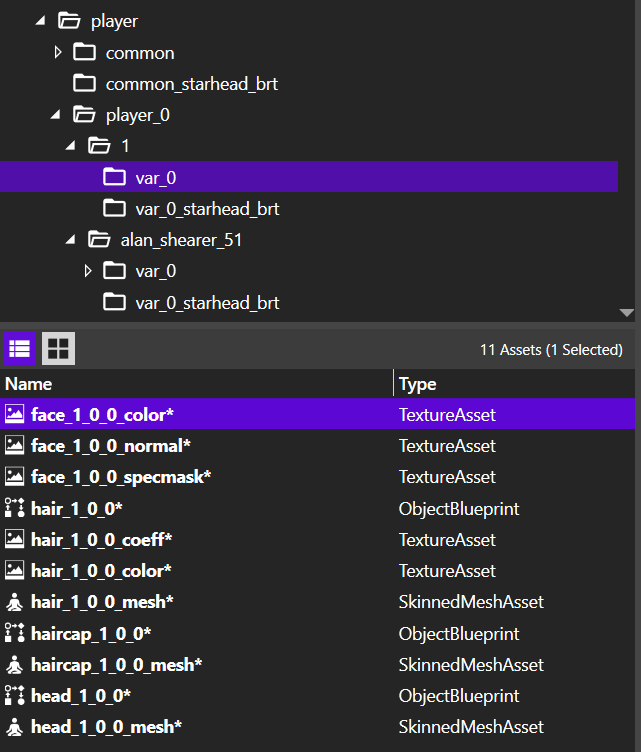
For faces and wardrobe items, there is also an “Add Variation” option.
And for faces, you can add specific assets to existing (default or added) faces:
Mouthbags (FC26+ only)
Face normal texture
Hair mesh
Hair accessory mesh
Face expression ambient and normal textures
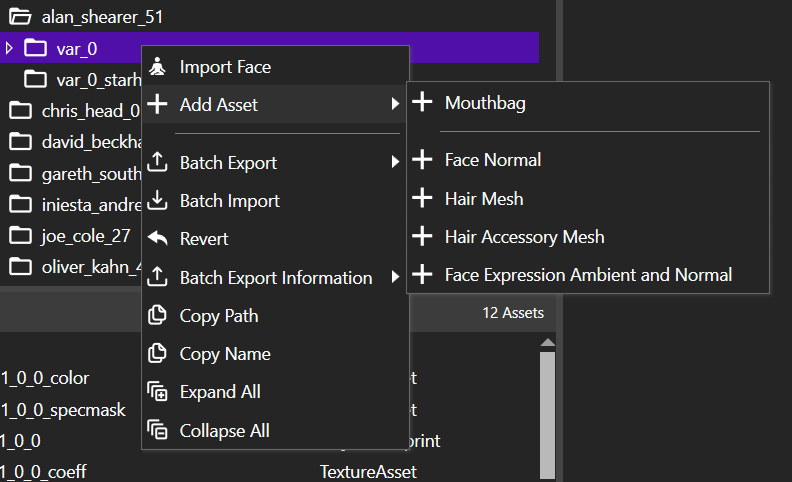
I think this covers the most common things you might want to duplicate, but I acknowledge there is a lot more out there! The rest will be added quickly in future versions.
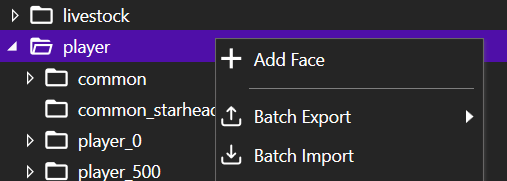
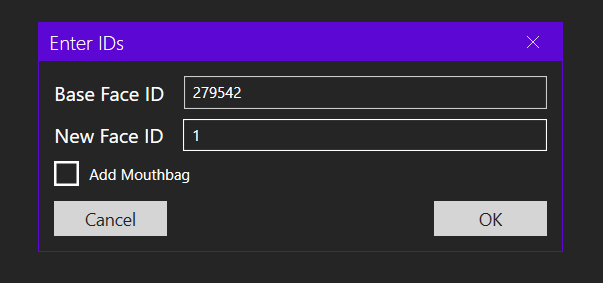
Anyways, I think you will agree with me that these new features feel like magic. You right click on the folder of the thing you want to add (i.e., for a face, content/character/player), and enter the new ID of the face (or whatever asset you are adding), and optionally change the default old ID, and click add. Done! Simple as that.
I do really need to thank WiiMaster from the Madden modding community. He expanded on my initial work on figuring out the Bundle Ref Table format, and completely figured out the new string compression system that was introduced for FC25 and FC26, which was a big feat. His discoveries spurred me on to try to get asset adding working, which led to everything else you read in this post, so without him this probably never would have happened.
The Future
Well, that’s a lot of changes! FET 2.0 brings much needed improvements to many areas of the tool, and also enables what every modder has been dreaming of since FIFA moved to the Frostbite engine. So where do we go from here?
Like I previously mentioned, EBX will be a big focus of mine across the next months, and I’m really excited about what will be possible in this area soon.
In terms of file formats we can’t really edit right now, the last big one is to do with audio: HarmonySampleBankAssets. These contain crowd noise and various other stuff, although nothing too exciting. We already have some basic support for these internally and I’m confident that editing can be achieved. It’s just a question of when I will have the time to implement it. It’s possible this gets added before FC27.
I will also be looking at improving our support for modifying video, and there are still some improvements to be made with our mesh exporting and importing, but otherwise there’s not too much left to support in terms of actual resources within the game.
I plan to add some new tools to FET, including a texture tool to make it easy to convert and/or resize textures, mostly PNG or DDS, with full support for all the DDS formats and options.
I also think the community is missing a fast and lightweight save (squad file, career file, etc.) editor, with nothing too fancy but allows you to quickly import and export tables. This is something I have already made good progress on, building upon our existing fast and simple editing for legacy DB assets, but it will take a bit more time to complete due to some of the quirks saves have.
Of course, performance is always something I’m looking to improve, and although FET 2.0 takes massive steps forward in that department, there’s always more that can be done. In November the tool will be upgraded to .NET 10, which will give a good boost to speed and memory usage.
And like I mentioned at the very start of this blog post, I want to redesign the UI at some point with new technology, once certain factors allow. Probably not something that will happen this cycle though.
Final thoughts
I‘m extremely proud of FET 2.0, and I think it was worth the months of work. What was once a dream is now possible in a couple clicks.
There are lots of smaller changes and improvements made that I didn’t talk about in this blog post, especially to do with performance. So many little improvements were made here and there that add up and contribute to faster speeds and much better memory usage. In particular, all the code I wrote was written with memory usage in mind, and that should be much better in FET 2.0, as we handle resources we create much better and efficiently.
And while FET 2.0 adds and improves so much, it’s actually much smaller! The Editor exe is down from 252mb to 152mb, and the Mod Manager exe from 178mb to 93mb.
The testing process has been pretty smooth so far. I’ve just released the latest Beta, which includes both the Editor and the Mod Manager, and I’m hoping to publish the final release in 2 days or so.
Thank you for reading this and I hope you enjoy FET 2.0!
FIFER
Your work is essential to the community.
Amazing work!!